
Get Facebook leads
Connect a Facebook Lead Ads form so every person who fills it in becomes a contact with a task.
- Who can do it
- Owner or Admin
- Plan
- Facebook lead forms must be part of your plan
- Time
- 10 minutes
If you run Facebook or Instagram lead ads, EnableLeads can receive each submission the moment it happens, so your team can call while the person is still looking at your ad.
Before you start
- You need to be able to manage the Facebook Page that runs the lead form, and you need the lead form itself to exist.
- Connecting is for admins. Facebook lead forms must be part of your plan; if not, the screen says so and you can ask us to add it.
Connect a form
- Open Settings → Apps and Integrations → Apps Integrations and choose Connect App.
- On the Facebook card, choose Connect.
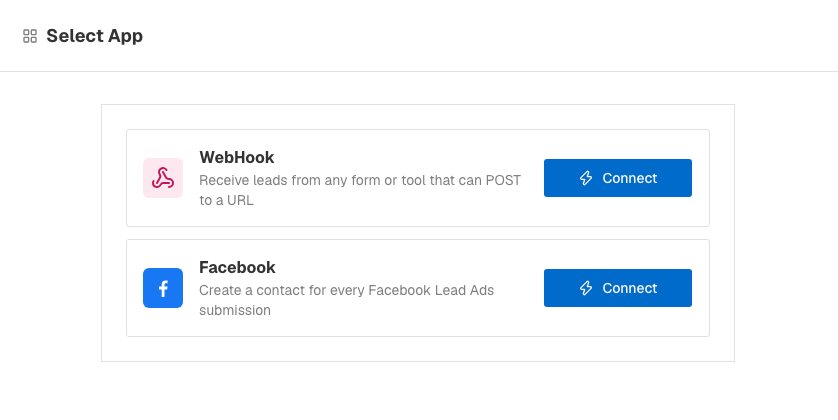
The Select App page: choose Facebook to connect lead ads. - Choose Continue with Facebook and sign in with the Facebook account that manages your Page. Allow EnableLeads to read your Pages and lead forms.
- Back in EnableLeads, you see Connected as and your name. Choose your Facebook Page, then your Lead Form.
- Fill in what should happen to the leads: - Name: what you will call this connection (it starts as the form's name). - Campaign: a label for the contacts, useful for reports and for lead routing. - Assignment: No one (I will assign them), Take turns among people I pick, or Take turns among everyone active. - Default first task: the task each lead gets, such as "Call [Firstname] about the ad".
[Firstname]becomes the person's first name. - Apply tags: tags to put on every lead. - Choose Create. You see "Facebook form connected" and the form appears in your list.
What happens to each lead
Each submission becomes a contact with the source Facebook, your campaign, the status Fresh Lead and your tags. It is given to the person your assignment (or your lead rules) picks, and gets the first task. That person gets a New lead alert. The common Facebook fields (full name, email, phone and so on) are picked up automatically; to match a custom question, use Map fields on the form's row.
If the same phone number submits again, no second contact is made. A task ("New submission from … — follow up") is added to the existing contact instead.
Pause, change or remove a form
Open Settings → Apps and Integrations → Apps Integrations. Each connection has a Status switch to pause and resume it, and a … menu with Edit and Delete. Deleting stops new leads from that form; the contacts already made stay.
If it does not work
- "Facebook isn't set up for this app yet." This is on our side. Write to us.
- My Page or form is not in the list. Sign in with the Facebook account that manages the Page, then choose Try again.
- "This lead form is already connected." Each form can be connected once. Edit the existing connection.
- Leads stopped arriving. The Facebook sign-in may have been ended (for example, after a password change). Delete the connection and connect it again.
- I need to connect more forms. Choose Continue with Facebook again if it asks, then add each form as its own connection. Disconnect removes the sign-in only, so existing forms keep sending leads, but you must sign in again to add more.
What to do next
Was this helpful?
Still stuck?
Ask us and tell us what you were trying to do. We will see the page you came from.
Ask us in EnableLeadsRelated
Last updated 2 November 2026