
Your daily task list and "What's Next?
See what to do today, finish a task, and always leave the lead with a next step.
- Who can do it
- Everyone on the team
- Plan
- All plans
- Time
- 5 minutes to learn
The Tasks page (the first page you see after signing in) is your working list: every open task for the leads you work, with the earliest first. The idea behind it is simple: every active lead should always have one next step on a date.
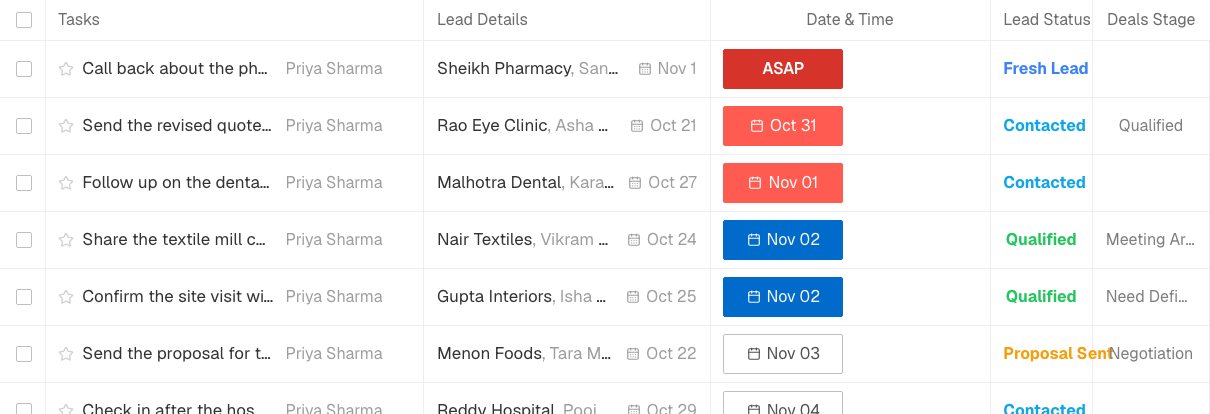
Work through the list
- Open Tasks. The menu at the top left switches between All Tasks, Today's Tasks, Upcoming Tasks, Overdue Tasks and Starred Tasks, with a count for each.
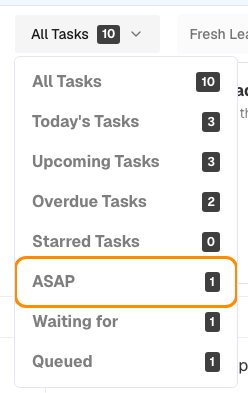
The menu at the top left switches the list. - Click a task to open the contact, or use the checkbox to select several and change them together (assign to someone else, or change the contacts' status).
- Star a task to find it again under Starred Tasks.
Finish a task and say what's next
Finishing a task is a question, not a tick: "What's Next?"
- Open the contact and tick the task, or choose Mark complete from the task's menu (the three dots).
- Write the next step, choose who does it and when, and choose Submit. The finished task goes into the activity log and the new one takes its place.
- If there is nothing more to do with this lead, open the three-dot menu and choose Close Task Cycle. The lead stays in Contacts, but its sales cycle is closed and a banner offers Reopen if you change your mind. Adding a new task reopens it too.
ASAP, Waiting for and Queued
Most tasks are ordinary: a thing to do on a day. Three other kinds help when a plain date does not fit. Change a task's kind from its three-dot menu: Make it ASAP, Make it Waiting for, Make it Queued, or Make it an ordinary task.
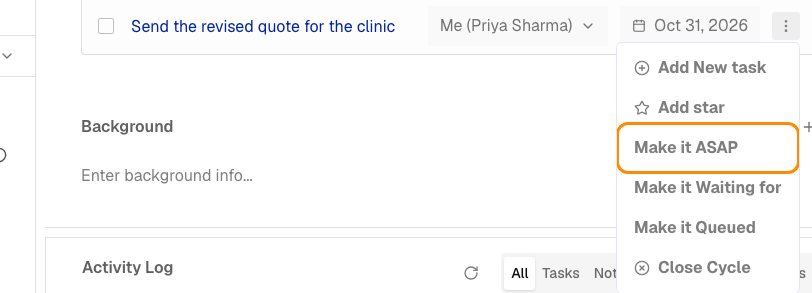
- ASAP means do this before anything else. It has no date, it jumps to the top of the list in red, and a contact can have only one.
- Waiting for is a task you are waiting on someone else for, such as a floor plan from the client. Give it the day you would chase. It sits below everything that is due and does not appear in your morning email or the bell.
- Queued is a reminder with no date, parked behind the real work.
Closing a sales cycle finishes any Waiting for and Queued tasks on that lead with it, and they never stop you from closing it. In the menu at the top left, ASAP, Waiting for and Queued each have their own view.
The order of the list
The list is sorted: ASAP first, then overdue, then today, then later days, then Waiting for, then Queued.
If it does not work
- A task is missing from Today. Today shows tasks dated today and your ASAP tasks. Waiting for tasks only show under All Tasks and Waiting for.
- I cannot close the cycle. Another ordinary or ASAP task is still open on that lead. Finish or change it first.
- I cannot make a task ASAP. The lead already has an ASAP task. Finish it or change its kind first.
- I only see my own tasks. Your role limits you to tasks you are assigned or created. An admin can change your role.
What to do next
Was this helpful?
Still stuck?
Ask us and tell us what you were trying to do. We will see the page you came from.
Ask us in EnableLeadsLast updated 2 November 2026