
Invite your team
Add a teammate, choose what they can do, and decide whether they get new leads.
- Who can do it
- Owner or Admin
- Plan
- All plans (the number of people depends on your plan)
- Time
- 2 minutes
Everyone who works leads with you gets their own sign-in, so each person sees their own tasks and the history shows who did what.
Add a person
- Open Settings → Users Details → Manage Users.
- Choose Add member.
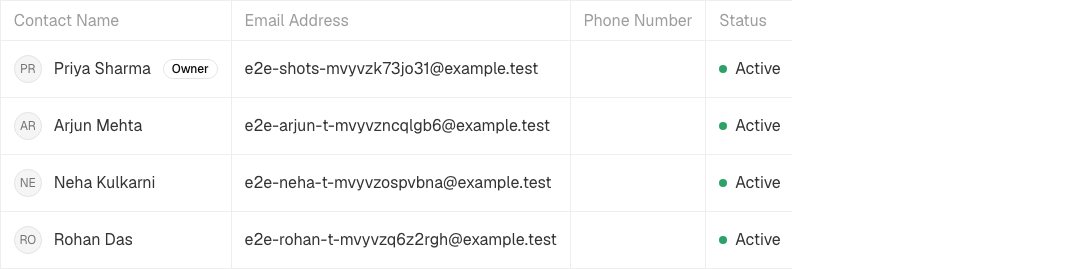
Manage Users lists your team. Add member is at the top right. - Fill in their Name and Email. A Phone is optional.
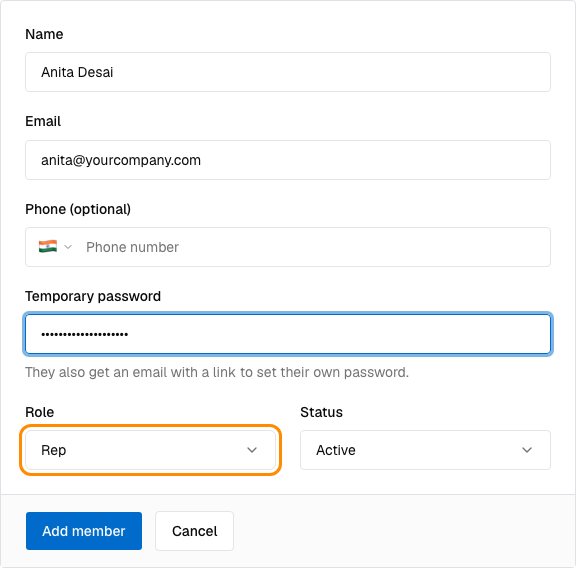
The Add member form. - Set a Temporary password. They also get an email with a link to set their own password, so this is only a fallback.
- Pick a Role. A Rep works leads; an Admin also manages settings and the team. You can make your own roles under Settings → Users Details → Roles.
- Leave Status as active, and choose Add member.
We email them an invitation straight away. If that email cannot be sent, the screen says so, and you can share the temporary password with them yourself.
Choose whether they get new leads
The Gets new leads switch decides whether this person is included when leads are shared out by turns (CSV imports, Facebook forms, web forms and webhooks). Switch it off while someone is away: they are skipped, and any lead you assign to them by hand still goes to them. Switch it back on when they return.
If it does not work
- They did not get the email. Check their spam folder, then give them the temporary password you set and ask them to change it after signing in.
- I cannot see Manage Users. Only admins can manage the team. Ask an admin of your business to add the person or to change your role.
- Someone should leave the team. Open their row in Manage Users and change their status to suspended or archived.
What to do next
Was this helpful?
Still stuck?
Ask us and tell us what you were trying to do. We will see the page you came from.
Ask us in EnableLeadsLast updated 2 November 2026