
Share new leads fairly
Hand each new lead to the next person in turn, by source or campaign, and skip anyone who is away.
- Who can do it
- Owner or Admin
- Plan
- All plans
- Time
- 5 minutes
When leads arrive on their own (a web form, Facebook, a webhook or a CSV), someone has to own each one quickly. Lead Routing does that for you: it gives each new lead to the next person in turn, so nobody is overloaded and nothing sits unowned.
Make a rule
- Open Settings → Apps and Integrations → Lead Routing and choose Add rule.
- Give it a Rule name you will recognise, such as "Solar leads to Priya".
- Under When the lead is from source, choose Any source or one of your sources.
- Under and its campaign is, type a campaign name to match only that campaign, or leave it empty for any. The match ignores capital letters and extra spaces.
- Under Give those leads to, choose The people I pick, by turns or Everyone active, by turns.
- If you chose people, tick them under People. Pick one person to give them every matching lead, or several to share the leads evenly.
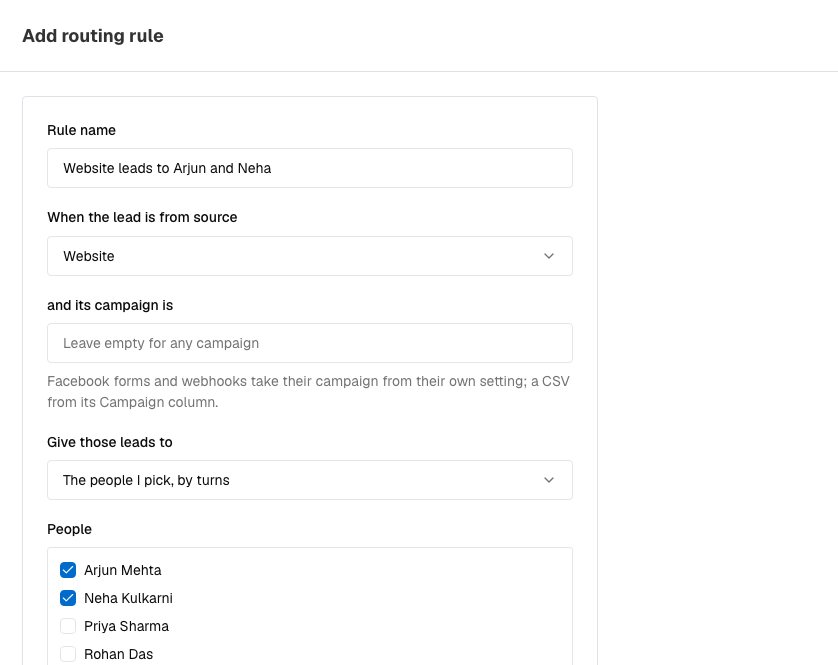
A routing rule that shares website leads between two people. - Choose Add rule.
How the rules are applied
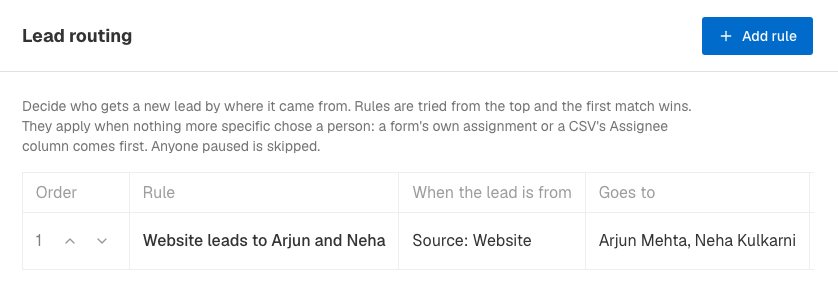
- Rules are read from the top of the list to the bottom, and the first rule that matches wins. Use the arrows in the Order column to move a rule up or down.
- A rule with no source and no campaign matches every lead, so put it last as a catch-all.
- "By turns" means each person gets the next lead in a fair rotation. Someone who is paused, or no longer active, is skipped.
- Routing only decides when nothing more specific already chose a person. A form's own Who gets the lead choice, and a CSV file's own Assignee column or the choice you make in the import dialog, come first.
Skip someone who is away
- Open Settings → Users Details → Manage Users and open the person.
- Switch off Gets new leads. The list then shows a Leads paused label on them.
- Switch it back on when they return.
Leads shared out by turns skip a paused person. A lead you assign to them by hand still goes to them.
If it does not work
- A lead arrived with no owner. No active rule matched it, the rule is switched off, or everyone the rule lists is paused. Check the Status switch on the rule and the People it lists.
- A rule is not being used. A form has its own Who gets the lead choice, which beats routing. Set it to Nobody (the lead rules decide) on the form's Configure tab.
- The wrong rule fired. An earlier rule in the list matches too. Move the one you want above it.
- The CSV import says nobody can take new leads. Everyone in the group you picked is paused. Pick another group or switch someone back on.
What to do next
Was this helpful?
Still stuck?
Ask us and tell us what you were trying to do. We will see the page you came from.
Ask us in EnableLeadsLast updated 2 November 2026