
Roles and what a Rep can see
Choose what each person can do, from the three built-in roles to roles you design yourself.
- Who can do it
- Owner or Admin
- Plan
- All plans for built-in roles; custom roles depend on your plan
- Time
- 5 minutes
A role is a set of things a person is allowed to do. Everyone in your business has one, and you choose it when you add them.
The three built-in roles
- Admin can do everything: contacts, tasks, deals, reports, all settings, the team and billing.
- Manager works every lead, deal and task and can see Insights, but cannot delete contacts or deals and cannot change settings, the team or billing.
- Rep works every lead in the business, so a lead can be picked up when someone is away. A Rep can see and change contacts, deals and tasks, and delete tasks, but cannot delete contacts or deals, and cannot change settings, the team or billing.
The built-in roles are fixed. To change one, make a custom role that starts from it.
Give someone a role
- Open Settings → Users Details → Manage Users.
- Add a person, or open an existing one.
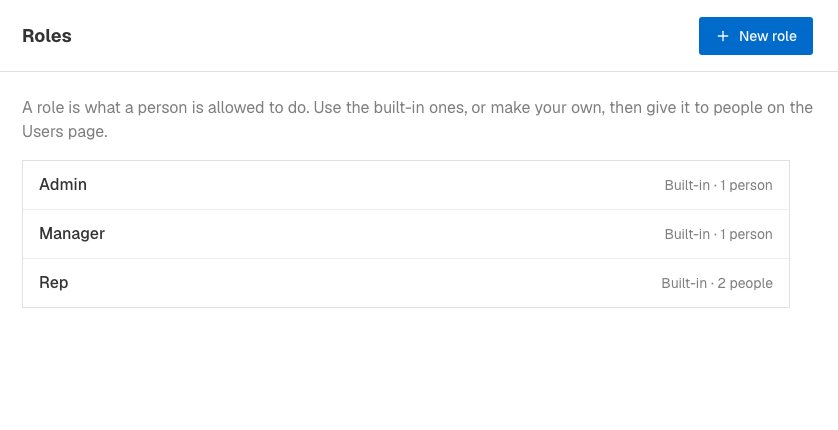
The built-in roles. - Choose a Role and save. The change applies the next time they open a page.
Make your own role
- Open Settings → Users Details → Roles and choose New role.
- Give it a Name (2 to 40 characters). Under Start from, pick Nothing allowed or Same as one of the roles you have.
- Go through the groups and set each item: - Contacts, Tasks, Deals: see, add and change, delete. - Reports: see Insights. - Settings: statuses, sources, tags and call outcomes; custom fields; deal items; pipeline stages; lead sources and integrations; email templates; excluded emails; workflows. - Team and billing: manage people, roles and security; see and manage the plan and billing.
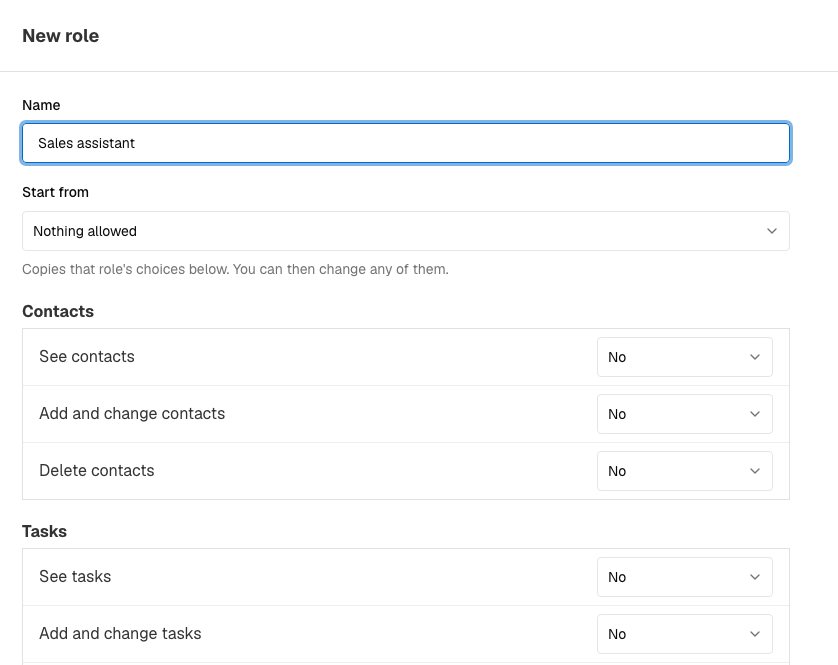
The role editor. - For items that can be limited, choose No, Own records or All records. "Own records" means the contacts, tasks or deals the person owns or is assigned. Other items are No or Yes.
- Choose Create role.
The owner
The person who created the business is its owner. This is not a role: the owner must stay active, cannot be removed, and must keep a role that can manage the team. To hand the business to someone else, an owner opens Manage Users and chooses Transfer ownership, then picks a New owner from the people whose role can manage the team. You then become a regular admin.
If it does not work
- I cannot open Roles. Only people whose role can manage the team see it. Ask an admin.
- I cannot delete a role. Somebody still has it. Give them another role first.
- A Rep says they cannot delete a contact. That is how the Rep role works. Give them a custom role that allows it, or ask an admin to delete it.
- I cannot make a custom role. Custom roles depend on your plan. See Settings → Users Details → Plan & Billing.
What to do next
Was this helpful?
Still stuck?
Ask us and tell us what you were trying to do. We will see the page you came from.
Ask us in EnableLeadsRelated
Last updated 2 November 2026