
Import contacts from a CSV
Bring in a whole spreadsheet of people, match the columns, share them out and give each a first task.
- Who can do it
- Anyone who can add contacts
- Plan
- All plans (limited by the contacts your plan allows)
- Time
- 10 minutes
If your leads live in a spreadsheet, save it as a CSV file and import it. EnableLeads matches your columns to its fields, so you do not need to rename anything.
Prepare the file
- Save your sheet as CSV (comma separated) from Excel or Google Sheets.
- Put the column names in the first row. Blank rows are ignored.
- A person needs at least a name, a phone or an email to be imported.
Import it
- Open Contacts and choose Import Contacts. On a phone, it is in the ... menu.
- Choose Browse your file and pick the CSV. The screen says how many rows it found.
- Under Assign leads, choose what happens to the new contacts: - No one (I will assign them) - Take turns among people I pick, then tick the people (anyone paused is marked and skipped) - Take turns among everyone active
- Go down the list of fields and check that each one is matched to the right column of your file. We guess from the column names (a column called "phone", "mobile" or "phone number" is matched to Phone, "company" to Organization Name, and so on). Change any that are wrong, or choose Not mapped to leave a field out.
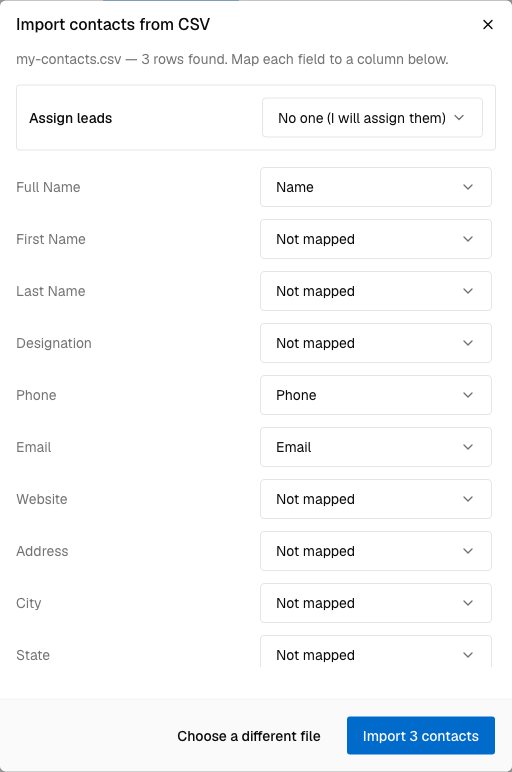
Matching the columns of your file to EnableLeads fields. - Choose Import N contacts. A message tells you how many were imported and how many were skipped.
What you can match
Full Name (split into first and last at the first space, if you did not map those), First Name, Last Name, Designation, Phone, Email, Website, Address, City, State, Pincode, Country, Background, Organization Name, Organization Website, Organization Description, Status, Source, Tags (comma separated), Campaign, Assignee (email or name), and every custom field you have made.
- Status, Source and Tags are matched by name, and created if they do not exist yet. Without a Status column, contacts start as Fresh Lead; without a Source column, they get the source Import.
- Assignee can hold a team member's email or name. Those rows go to that person, and the rest are shared by the choice you made above.
- Task, Task Date and Task Time give each contact a first task, assigned to the person who gets the contact. Dates must look like 2026-11-30, and times like 14:30.
Who is told
People who were given contacts see it in their bell ("… assigned … to you and N more"), and get a push alert if they have turned that on.
If it does not work
- "Couldn't read any columns from that file." The first row is empty or the file is not a comma-separated CSV. Re-save it as CSV.
- Letters look wrong. Save the file as CSV UTF-8 and try again.
- "This would take you past the N contacts your plan allows." The file does not fit your plan. Nothing is lost, but a large file is imported in batches of 200 rows, so the first batches may already be in. Write to us to raise the limit.
- "Nobody in that list can take new leads right now." Everyone you picked is paused. Pick someone else or switch a person back on.
- Fewer contacts than rows. Rows without a name, phone or email, and rows whose phone is already in EnableLeads, are skipped.
What to do next
Was this helpful?
Still stuck?
Ask us and tell us what you were trying to do. We will see the page you came from.
Ask us in EnableLeadsLast updated 2 November 2026