
Send events to your own system
Have EnableLeads tell another app, signed and retried, the moment a contact, task, deal or call changes.
- Who can do it
- Owner or Admin
- Plan
- Outgoing webhooks must be part of your plan
- Time
- 15 minutes
Outgoing webhooks let another app know about things as they happen: a new lead, a won deal, a logged call. EnableLeads sends a small message to an address you choose. It is signed so the other app can trust it, retried if that app is down, and logged so you can see what was sent. This is for developers or tools such as Zapier or Make.
Add an outgoing webhook
- Open Settings → Apps and Integrations → Outgoing Webhooks and choose Add webhook. If you see "Outgoing webhooks isn't part of your plan", write to us to add it.
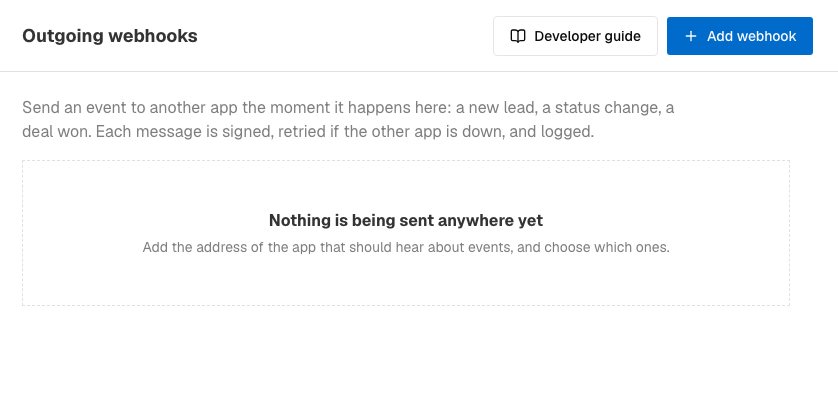
Outgoing webhooks, before you add the first one. - Give it a Name (2 to 80 characters), such as "Accounts software".
- Under Send events to, enter the web address of the other app. It must be a public https address. Addresses on a private network, such as localhost, are refused.
- Under Which events, tick what to send: - Contacts: a contact is created, a contact's details change, a contact's status changes, a contact is assigned to someone. - Tasks: a task is created, a task is completed. - Deals: a deal is created, won, or lost. - Activity: a call is logged, a note is added.
- Leave Switched on on, and choose Add webhook. A business can have up to 10.
Check that it works
Open the webhook and choose Send a test event. It says "Delivered. The receiver answered 200 in N ms" or tells you what went wrong. Tests never count towards pausing.
What the other app receives
A JSON message with an event id, the event name, the time, your business, and the details of the contact, task, deal, call or note involved (a contact includes its phones, emails, status, source, tags, owner and custom fields). Each message has its own id, and a retry repeats the same id, so a receiver can safely ignore an id it has already handled.
Make sure it really came from us
Every message carries a header called X-EnableLeads-Signature with a timestamp and a signature made with your Signing secret. Your developer compares them. To see or copy the secret, open the webhook and choose Show under Signing secret. If it ever leaks, choose Make a new one; the old one stops working at once. Reject messages whose timestamp is more than five minutes old. The public developer guide has ready-to-copy checks in Node, PHP and Python.
If the other app is down
If it does not answer with a success code, EnableLeads tries again after 1 minute, 5 minutes, 30 minutes, 2 hours and 6 hours, six tries in all. Later tries can lag by some hours. After five messages in a row are given up on, the webhook is Paused, the owner is emailed, and nothing is sent until you fix the other app and choose Resume. Events during the pause are not sent.
See what was sent
Open the webhook and choose Delivery log. It lists the last 50 messages from the past 14 days, with their status (Delivered, Will retry, Failed), the answer received and exactly what was sent. A message that was not delivered can be resent from there.
If it does not work
- "The address must start with https://" or "not reachable from the internet." Use a public https address.
- Nothing arrives. Check the webhook is Switched on, not Paused, and that the event is ticked.
- A change I made in bulk did not send anything. Bulk changes, imports and merges send no events.
- The signature does not match. Sign the raw body exactly as received, with the current secret.
What to do next
Was this helpful?
Still stuck?
Ask us and tell us what you were trying to do. We will see the page you came from.
Ask us in EnableLeadsLast updated 2 November 2026