
Automate new contacts with Autoflow
Choose the steps that run by themselves the moment a new contact arrives: a note, a tag, a status and a next action.
- Who can do it
- Owner or Admin (anyone whose role allows Workflows)
- Plan
- All plans
- Time
- 5 minutes
Autoflow does the same small jobs for every new contact so nobody has to remember them: tag the lead, set a status, leave a note and schedule the first call. You build it once, switch it on, and it runs whenever a contact is created.
Build a workflow
- Open Settings → Autoflow → Create Workflow.
- The trigger is already set to A new contact is created. (This is the only trigger for now.)
- Under Then, choose an action from Choose an action and fill it in: - Add Contact Note: the Note text to put on the contact. - Add Tag or Remove Tag: pick a tag. Adding a tag the contact already has does nothing. - Change Contact Status: pick a status. - Add Next Action: write the task (such as "Call within 1 hour") and set Due in a number of days, from 0 to 365. The task goes to the contact's assigned person, or to the owner if nobody is assigned.
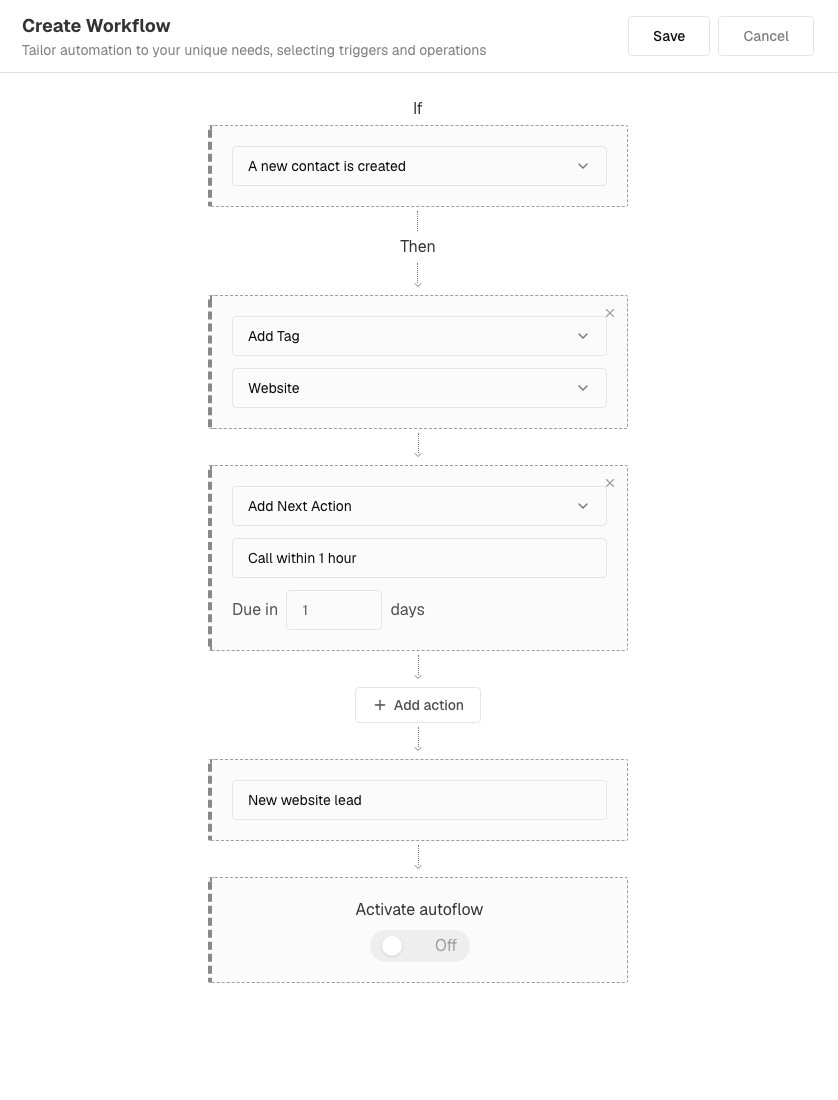
A workflow that tags a new contact and schedules a call. - Choose Add action to add more steps. They run in the order listed, and a workflow can have up to 10.
- Give it a name under Add Autoflow Name.
- Switch on Activate autoflow. New workflows start switched off, so nothing runs until you do.
- Choose Save.
When it runs
A workflow runs for every contact that is created by:
- adding a contact by hand,
- a CSV import (once for each new contact, not for rows that were skipped),
- a web form, Facebook lead form or webhook.
It does not run when you edit a contact, change many contacts at once, or when you save a workflow: it only affects contacts created after it is on. If several workflows are on, they all run, the oldest first.
See what it did
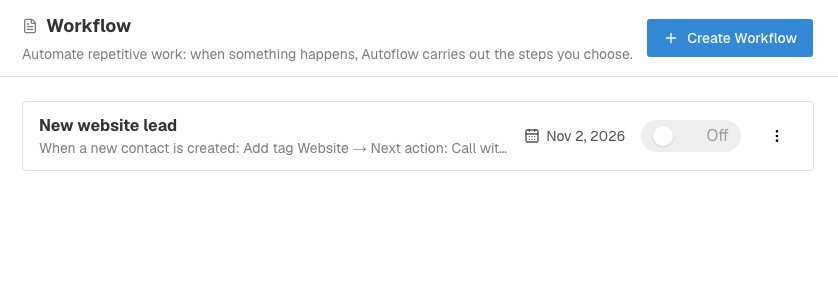
Each step leaves a line in the contact's activity log that starts with the workflow's name, for example Autoflow "New website lead": added a tag. There is no separate run history.
Switch it off, change it or delete it
Open Settings → Autoflow → Workflow. Each workflow shows a summary of its steps, an on/off switch, and a … menu with Edit and Delete. Deleting stops it for new contacts; the work it already did stays.
Good examples
- Website enquiries: Add Tag "Website", Change Contact Status to "Fresh Lead", Add Next Action "Call within 1 hour", due in 0 days.
- Imports: Add Contact Note "Imported from the 2026 trade show list", Add Tag "Trade show".
If it does not work
- Nothing happens. Check that Activate autoflow is on, and that the contact was created after you switched it on.
- "Choose an action for every step" or "Pick a tag". A step is still blank. Fill it in or remove it with its X.
- "A tag or status no longer exists." One of the tags or statuses in a step was deleted. Edit the workflow and choose another.
- The task is due a day early. Due dates count from today in UTC, so a lead created late in the evening in India can land a day early. Set Due in one day higher.
- I cannot open Autoflow. Your role does not include Workflows. Ask an admin.
What to do next
Was this helpful?
Still stuck?
Ask us and tell us what you were trying to do. We will see the page you came from.
Ask us in EnableLeadsLast updated 2 November 2026