
Statuses, sources and tags
Keep three simple lists tidy, so every lead says where it stands, where it came from and what it is about.
- Who can do it
- Owner or Admin to change the lists; everyone to use them
- Plan
- All plans
- Time
- 5 minutes
Three short lists describe every lead:
- Status says where the lead stands (Fresh Lead, Contacted, Qualified, Won, Lost).
- Source says where it came from (Website, Facebook, Referral).
- Tags say what it is about (a product, a city, a campaign), and a lead can have several.
What you start with
A new business comes with these statuses: Fresh Lead, Contacted, Qualified, Prospect, Proposal Sent, Won, Lost and On Hold. The sources are Website, Facebook, Referral, Manual and Other. There are no tags until you make some. Rename, recolour or add to any of them.
Change a list
- Open Settings and choose Status, Source or Tags.
- Choose Add status (or source, or tag). Give it a Name, an optional Description and a Colour, then save.
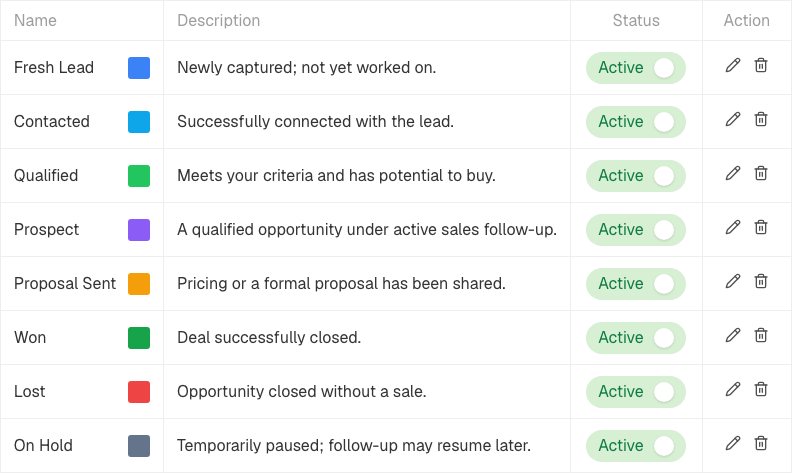
The Status list, with a colour, description and an on/off switch for each. - Use the pencil on a row to rename or recolour it.
- Use the switch on a row to switch a value off. It stays on the leads that already have it, but nobody can pick it for new ones.
- Use the bin to delete it. The leads that used it are left with none set, and this cannot be undone, so switching off is usually the safer choice.
Change a list while you are working
You do not have to leave the lead you are on. If you are allowed to manage the lists, every status and source dropdown has Add new status (or source) at the bottom, and a small gear beside it to rename, recolour, switch off or open the full list. Everyone else sees a plain dropdown.
Tag a lead
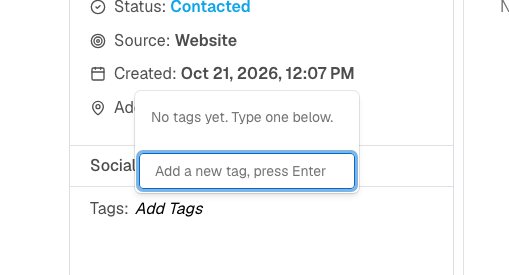
On a contact, find Tags in the left panel and choose Add Tags. Tick the tags you want, or type a new one and press Enter, which creates it and adds it at once. Anyone who can edit the contact can do this.
What "Fresh Lead" means
Leads that arrive from a form, Facebook, a webhook or a CSV without a status column start as Fresh Lead. When someone changes the status, the lead is no longer fresh.
Related lists
- Lost Reason (under Settings → Deals Catalog): why a deal was lost, asked when you mark one lost. See deals and the pipeline.
- Call Outcomes (under Settings): what happened on a call. The built-in outcomes (Interested, Not Interested, Busy / Call Back, Not Qualified, No Answer, Left Message, DND) are shared and cannot be changed. You can add your own.
If it does not work
- I cannot add a status from the dropdown. Your role does not include managing these lists. Ask an admin.
- A value I deleted is gone from my leads. Deleting clears it from the leads that had it. Add the value again and set it on the leads you need.
- I cannot delete a call outcome. It has been used on logged calls. Switch it off instead.
What to do next
Was this helpful?
Still stuck?
Ask us and tell us what you were trying to do. We will see the page you came from.
Ask us in EnableLeadsLast updated 2 November 2026