
Deals and the pipeline
Track what you are selling to whom, move each deal through your stages, and record why a deal was lost.
- Who can do it
- Anyone whose role includes deals; Admins set up items and stage names
- Plan
- All plans
- Time
- 10 minutes
A deal is something you are trying to sell to a contact: a product or service at a price. Deals live on a pipeline of stages, from the first conversation to won or lost.
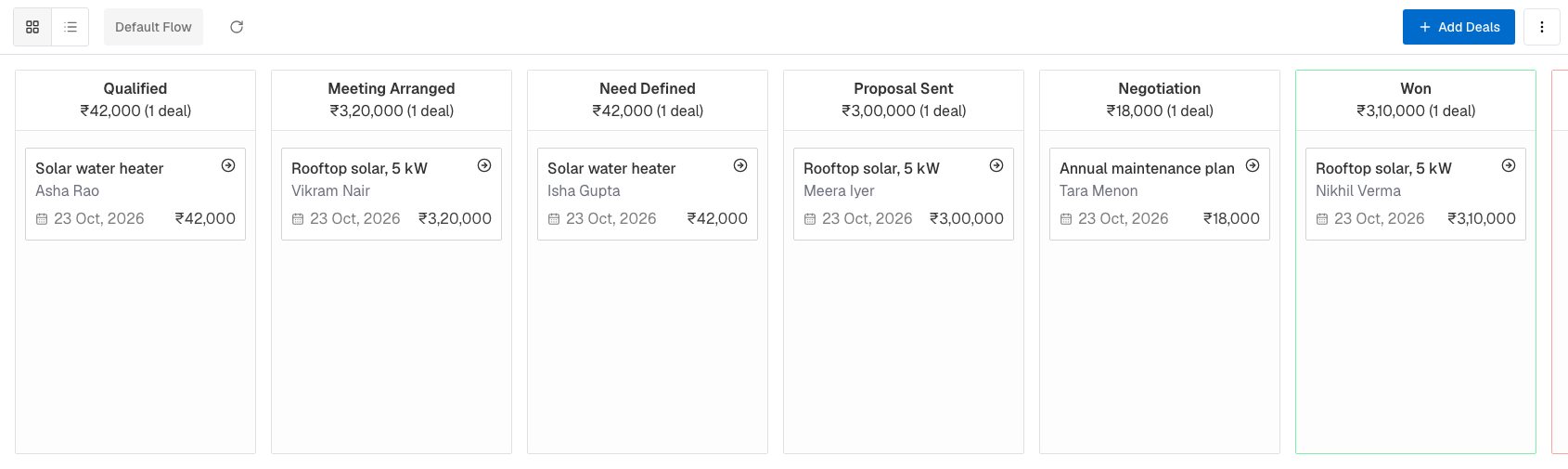
The Deals page
Choose Deals in the menu. You see a board, with a column for each stage:
- The default stages are Qualified, Meeting Arranged, Need Defined, Proposal Sent and Negotiation, then Won and Lost.
- Each column's heading shows the stage name, the total value of its deals and how many there are.
- Each card shows the item, the contact, when it was created and its value. Drag a card to another column to move the deal. It is saved at once.
The two buttons at the top switch between Kanban view and List view. The list has columns for the deal, contact, owner, amount, created date, close date, stage and lost reason; click a heading to sort, and change a deal's stage from its dropdown.
Set up what you sell
Deals are priced from your catalogue, so add your items first.
- Open Settings → Deals Catalog → Deal Items and choose Add item.
- Fill in a Name, an optional Description, the Cost to you, the Price, and a Commission (a percentage or a fixed amount) if you pay one.
- Choose Add. The Status switch on a row hides an item from new deals without deleting it. An item that an existing deal uses cannot be deleted.
Add a deal
- On Deals, choose Add Deals.
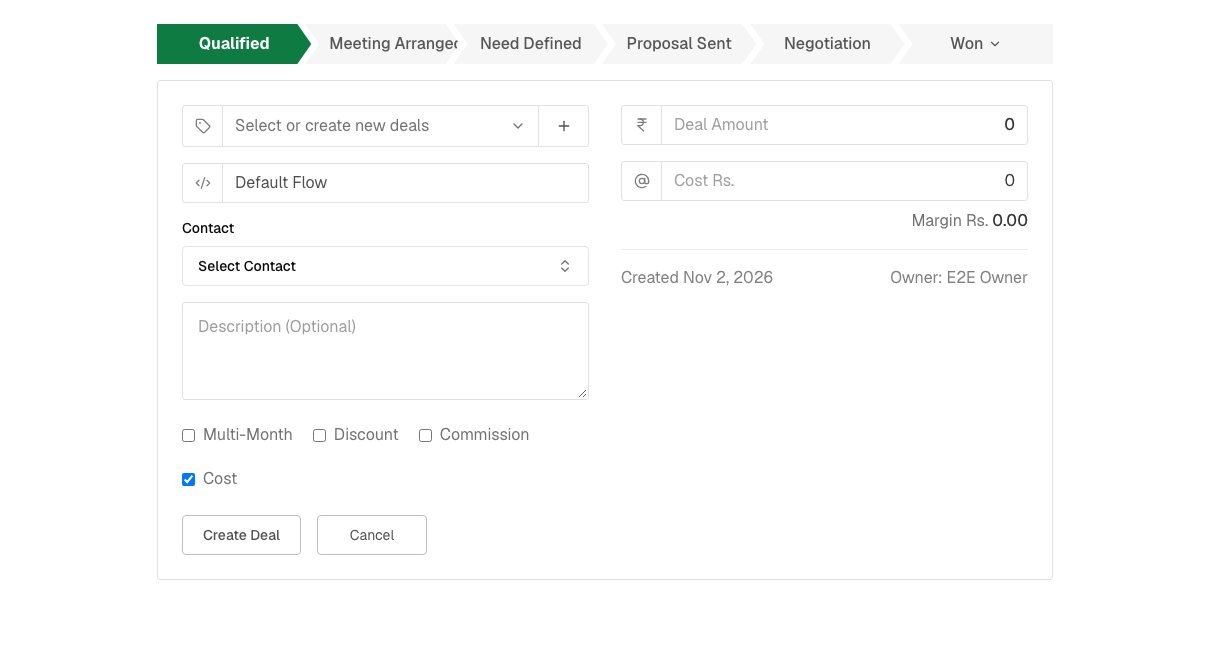
The new deal form. - Choose the Product or service. If it is not there yet and you are allowed to add items, the + beside it adds one without leaving the page.
- Choose the Contact (search by name, company, phone or email).
- Pick the starting stage at the top, add a Description if you like, and tick any of Multi-Month, Discount or Commission to reveal those boxes.
- Choose Create Deal.
Deal Amount is worked out for you: the item's price, less any discount (a percentage or a fixed amount), never below zero. Multi-Month records a monthly amount and a tenure in months, but does not change the deal amount. Margin is the amount less the item's cost and the commission.
You can also add and move deals from a contact's own Deals tab, where the same form appears and each deal has its own stage bar.
Win or lose a deal
- Move the deal to Won and it is closed as won.
- Move it to Lost and EnableLeads asks "Why was this deal lost?". Choose a Lost reason (required) and, if you want, Add a note (optional), then choose Mark as Lost. The reasons come from Settings → Deals Catalog → Lost Reason, where an admin can add or switch them off.
- To reopen a closed deal, move it back to an open stage.
Customize the stages
Admins can rename the five open stages: on the Deals page, choose the ⋮ menu, then Customize Pipeline, change the names, and choose Update Pipeline. You cannot add, remove or reorder stages, and Won and Lost are fixed. Every business has one pipeline.
Who can do what
Roles control deals: See deals, Add and change deals and Delete deals. If a role is limited to Own records, a person sees only the deals they created. Deleting is done from the list view: tick the deals and choose Delete, which cannot be undone. The people who can rename stages need the Pipeline stages permission.
What gets recorded
The contact's activity log shows when a deal is created or deleted, but not each move between stages. If you use outgoing webhooks, other systems can be told when a deal is created, won or lost.
If it does not work
- "Qualify this contact before creating a deal." The contact is still Fresh Lead. Change their status, then try again.
- I cannot choose "Mark as Lost." A lost reason is required. If none are listed, an admin must add some under Lost Reason.
- The item I want is missing. It may be switched off in Deal Items, or you may need an admin to add it.
- I cannot drag a deal. Your role does not allow changing deals. Ask an admin.
- I cannot delete a deal. Your role does not include Delete deals.
What to do next
Was this helpful?
Still stuck?
Ask us and tell us what you were trying to do. We will see the page you came from.
Ask us in EnableLeadsLast updated 2 November 2026