
Read your Insights
See how many contacts, tasks, calls and deals your team handled, and how fast new leads get a first reply.
- Who can do it
- Anyone whose role includes See Insights
- Plan
- All plans
- Time
- 5 minutes
Insights answers "what has my team been doing, and how quickly do we answer new leads?" It is one page you scroll, with a date range at the top.
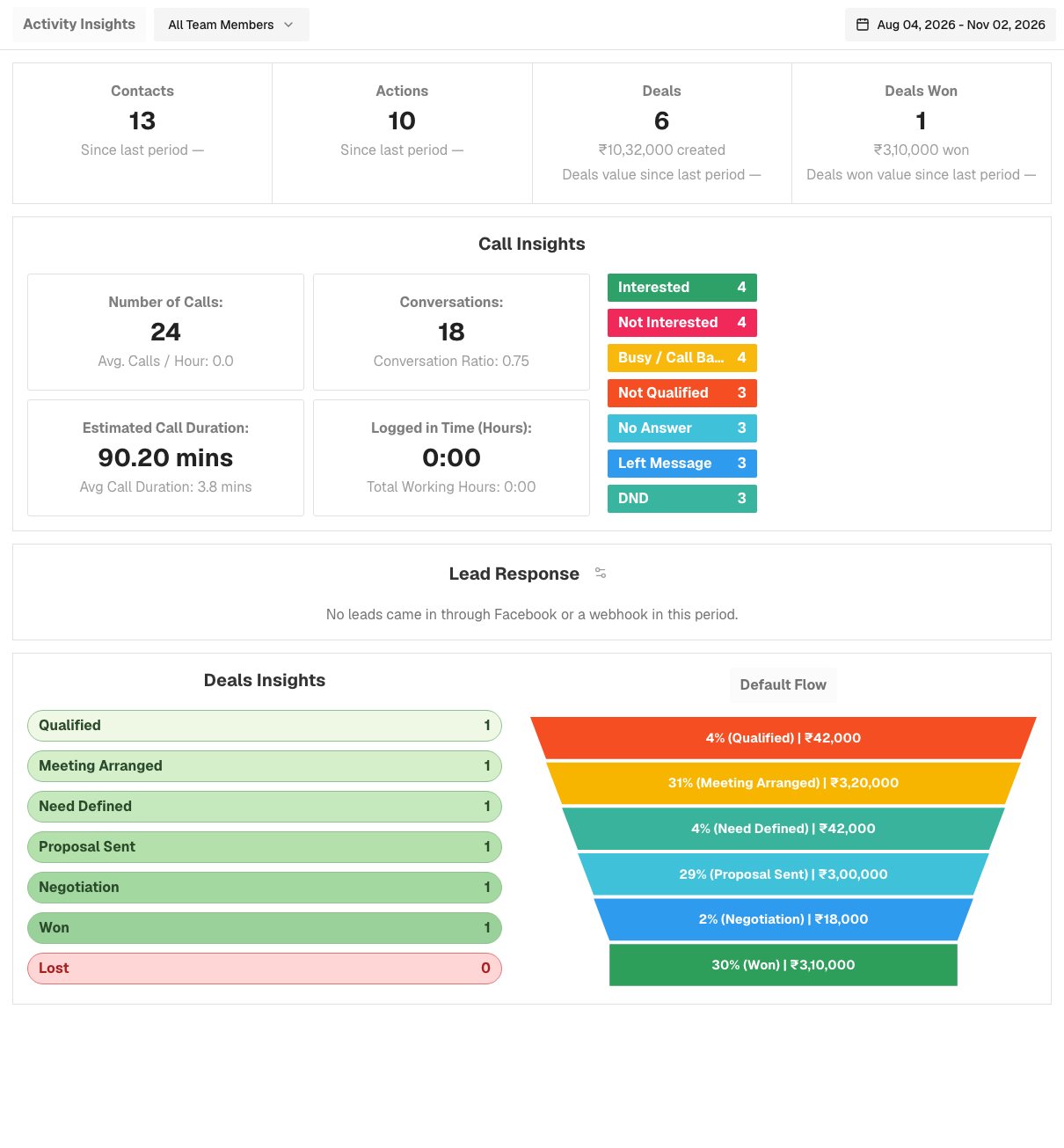
Open it and choose what to look at
- Choose Insights in the menu.
- Use the date button to pick the period. It starts on the last 90 days. The shortcuts on the left are Today, Yesterday, Last 7 Days, Last 30 Days, This Month, Last Month and Last 90 Days, or pick any two days on the calendar and choose Apply. Dates follow your own time zone.
- If your role lets you see everyone's numbers, a team dropdown appears: All Team Members, Me, or one person. If your role shows only your own records, you see your own numbers and there is no dropdown.
The four tiles at the top
- Contacts: contacts created in the period.
- Actions: tasks created in the period.
- Deals: deals created in the period, with their total value.
- Deals Won: deals created in the period that are won now, with their value.
Each tile compares with the period just before it, of the same length, and shows the change as a percentage: green going up, red going down. For the two deal tiles the comparison is by value, not by count. A dash means the earlier period had nothing to compare with.
Call Insights
Everything here counts the calls logged in the period:
- Number of Calls, and the average calls per hour across the whole period.
- Conversations: calls that reached someone. Each call outcome has a Counts as a conversation setting (see Settings → Call Outcomes). A call with no outcome counts as a conversation. The Conversation Ratio is conversations divided by calls, shown as a decimal such as 0.62.
- Estimated Call Duration: the total time of calls where a duration was recorded, and the average.
- Logged in Time: how long people were signed in, from their real sign-ins (a single sign-in counts for at most 12 hours).
- Outcome chips: a coloured chip for each call outcome with how many calls had it.
Lead Response
This is the number to watch if you buy leads. It covers leads that arrived through Facebook or a webhook in the period (not people you typed in or imported):
- Leads: how many arrived.
- Median First Contact: how long, typically, until someone first reached out.
- Within …: the share of leads first contacted within your target (1 hour to begin with), with the counts.
- Not Contacted: leads nobody has reached yet.
A lead counts as contacted when someone logs a call, a meeting, an email sent from the contact, or a message note (SMS, WhatsApp, LinkedIn, inbound call, postal mail). A plain note does not count. Admins can change the target with the small gear: type the number of minutes and choose Save. The same target decides who is "not contacted" in the morning email.
Deals Insights
See deals and the pipeline for how deals and stages work. This is a funnel of the deals created in the period, for your first pipeline. Each stage shows how many deals it holds, and each band of the funnel shows its share of the total deal value, with the value in rupees. Lost deals are in the totals but left out of the funnel drawing.
If it does not work
- I cannot see Insights. Your role does not include See Insights. Ask an admin to change your role.
- The numbers look low. Check the date range, and the team dropdown if you have one. Tiles count what was created in the period, not what happened to older contacts.
- Lead Response is empty. "No leads came in through Facebook or a webhook in this period" means just that. Leads from web forms, imports and hand entry are not in this section.
- There is no export. Insights is for reading on screen. To take contacts, deals or tasks out as a file, see Download your data.
What to do next
Was this helpful?
Still stuck?
Ask us and tell us what you were trying to do. We will see the page you came from.
Ask us in EnableLeadsLast updated 2 November 2026