
Send leads from any website or tool
Give a form, a plugin or an automation tool a private address, and every lead it posts becomes a contact.
- Who can do it
- Owner or Admin
- Plan
- Lead sources count towards your plan's limit
- Time
- 10 minutes
If your website already has a contact form (WordPress, a landing page builder, or a tool like Zapier or Make), you do not need a new form. Give it an address to send its answers to, and each submission arrives in EnableLeads as a contact.
Make the address
- Open Settings → Apps and Integrations → Apps Integrations and choose Connect App.
- On the WebHook card ("Receive leads from any form or tool that can POST to a URL"), choose Connect.
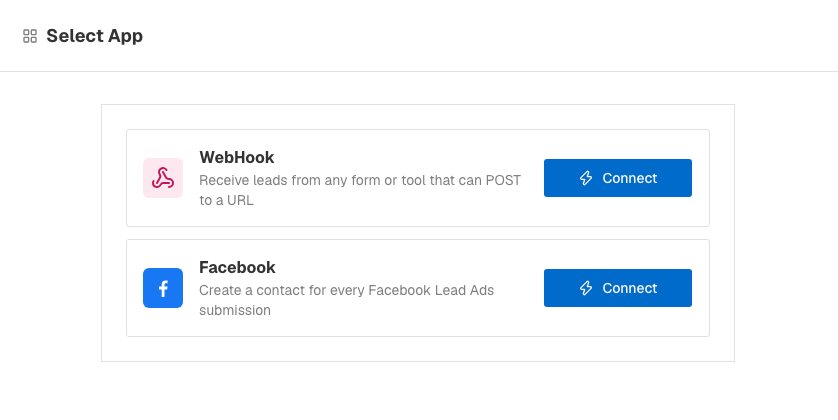
Choose WebHook to receive leads from any form or tool. - Fill in the form: - Name: this becomes the source on every contact it creates, so use something clear like "Landing page". - Campaign: an optional label put on each contact. - Assignment: No one (I will assign them), Take turns among people I pick, or Take turns among everyone active. If you pick no one, your lead routing rules decide. - Default first task: a task for each new lead. Write
[Firstname]where the person's first name should go. - Apply tags: tags to put on every lead.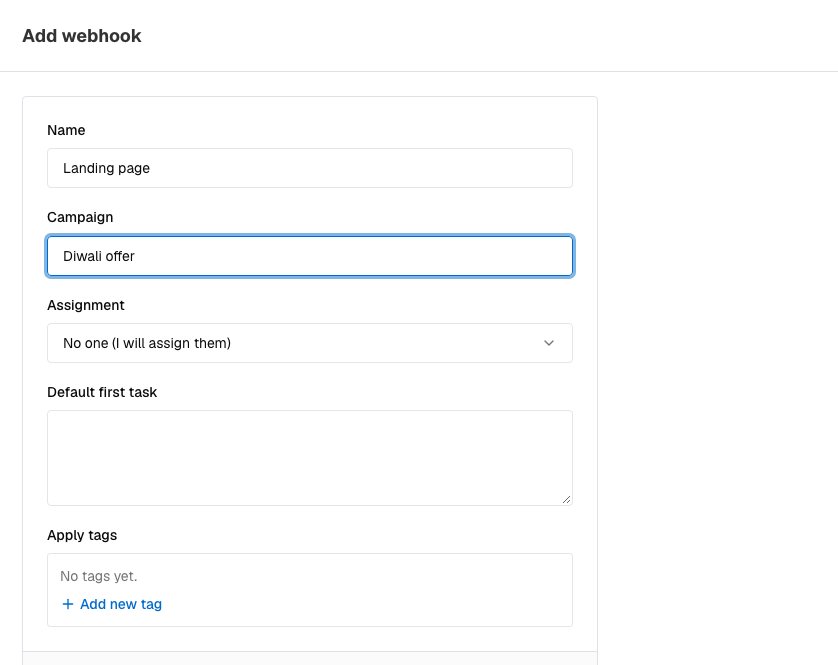
The WebHook form. - Choose Add webhook.
Copy the address and give it to your form
In the list, choose Copy URL. The address looks like https://app.enableleads.com/api/webhooks/ followed by a long private code.
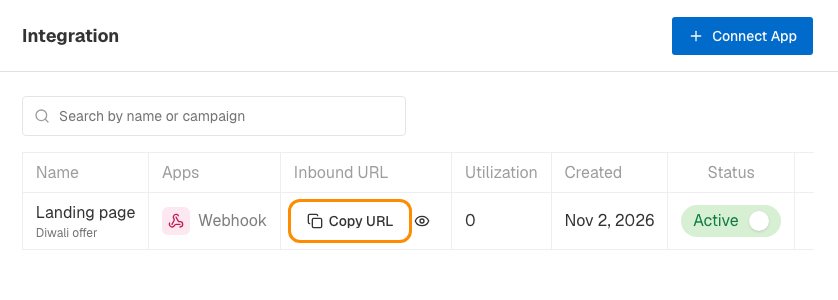
The eye icon (Setup guide for developers) opens a private page for that webhook with your address, a test command, ready-made examples (an HTML form, JavaScript, PHP, cURL) and set-up notes for WordPress form plugins, Elementor, Gravity Forms, Zapier and Make. Hand that link to whoever builds your website.
What to send
Post the fields as a form, or as JSON. The names we understand without any set-up are:
- name (or full_name), first_name, last_name
- phone (or phone_number)
- company, designation (or job_title)
- street_address, city, state, pincode (or zip), country
One field is enough to create a contact, and one without a name is called "Unknown". Text is cleaned and shortened, and Indian phone numbers are tidied automatically. A hidden field called _hp that is filled in marks a bot: we answer "success" and keep nothing. A field called _redirect with a web address sends a person who submitted a plain browser form to your thank-you page.
If your form uses different field names, choose Map fields on the webhook's row. Send one real submission first. Then choose which of the fields you sent fills each EnableLeads field, including your custom fields.
What happens to each lead
A new contact is made with the status Fresh Lead, the source named after your webhook, your campaign and tags, and the first task. It goes to the person your assignment picks, who gets an alert. Your Autoflow steps run too.
If the phone number is already in your business, no second contact is made. A task ("New submission from … — follow up") is added to the contact that exists. Only the phone number is compared, so a repeated email with no phone creates another contact.
Pause or remove it
Each webhook in the list shows Used N times and a Status switch. Switch it off to stop it, or use the … menu to Edit or Delete. Anything still posting to a switched-off or deleted address is told "Not found".
If it does not work
- The sender gets "Not found." The address was copied wrongly, or the webhook is switched off or deleted.
- "No fields received" or "Send JSON, or form fields". The post was empty or in a format we cannot read. Send JSON or normal form fields.
- Leads arrive with the wrong fields. Use Map fields, as above.
- I cannot add another one. Your plan limits how many lead sources you can connect. Nothing you have is affected; write to us to raise it. Incoming leads are never turned away by a limit.
- A test lead came in twice. The test had no phone number, so it was not recognised as a repeat. Add a phone number to the test.
What to do next
Was this helpful?
Still stuck?
Ask us and tell us what you were trying to do. We will see the page you came from.
Ask us in EnableLeadsLast updated 2 November 2026