
Turn on two-step sign-in
Add a code from your phone to your password, so a stolen password alone cannot get into your business.
- Who can do it
- Everyone (required for admins after their first week)
- Plan
- All plans
- Time
- 3 minutes
Two-step sign-in asks for a six-digit code from an authenticator app on your phone, as well as your password. Someone who steals or guesses your password still cannot get in.
Turn it on
- Install an authenticator app on your phone, such as Google Authenticator, Microsoft Authenticator or Authy.
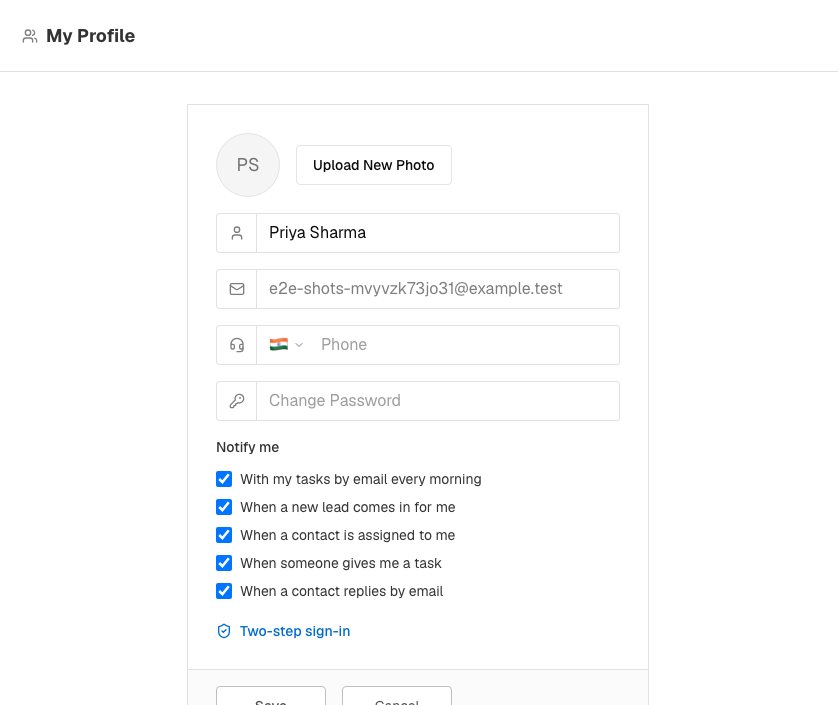
- In EnableLeads, open Settings → Users Details → Manage Profile and choose Two-step sign-in. (Or choose Set it up on the banner that asks you to turn it on, or open
app.enableleads.com/security.) - Choose Set up. A QR code appears, with the key written out beside it.
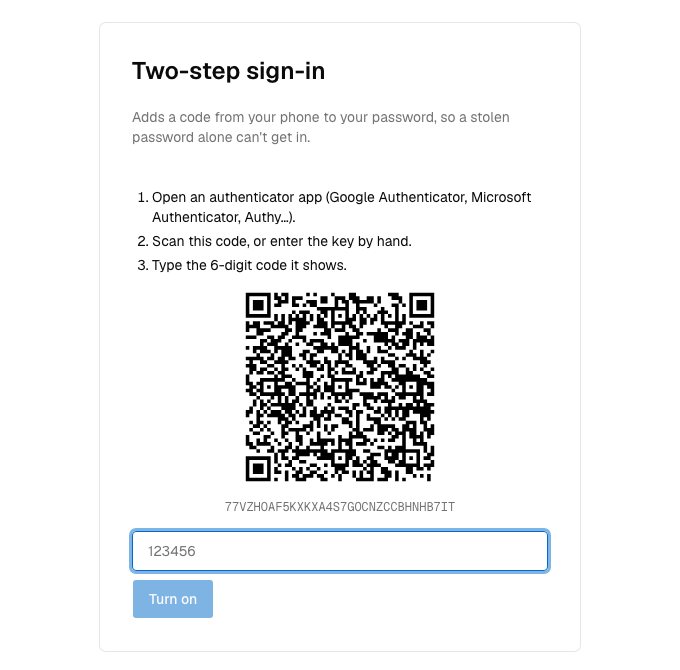
Scan the QR code with your authenticator app, then enter the code. - In your authenticator app, scan the QR code, or type the key in by hand.
- Type the six-digit code your app shows and choose Turn on.
- Save your recovery codes. They are shown once. Each works one time if you lose your phone. Use Copy, keep them somewhere safe, then choose I've saved them.
Signing in afterwards
Enter your email and password as usual. Then enter the code from your app and choose Verify and sign in. If you have lost your phone, enter one of your recovery codes in the same box.
Change or turn it off
Open Two-step sign-in again. You will see that it is on and how many recovery codes are left. Type your password, then choose New recovery codes (the old ones stop working) or Turn off.
Who has to use it
Owners and admins are asked after their first week; until then, a banner reminds them. If your business chooses Everyone, each member is given three days to turn it on and must do so before they can continue. An admin sets this under Settings → Security, where they can also choose how long people stay signed in (1, 3 or 7 days), see who has two-step on, and sign a person out of every device.
Passwords and your sign-ins
- Change your password on Manage Profile: enter the new one twice and your current one. It must be at least 8 characters.
- Forgot it? Choose Forgot password? on the sign-in page, enter your email and choose Send reset link. The link works once and expires after an hour.
- Something looks wrong? On Manage Profile, Your sign-ins lists your last sign-ins by device and time. Sign out of all devices ends every sign-in, in every business you belong to, then change your password.
If it does not work
- "That code is not right." Check that the time on your phone is set automatically, then try the next code.
- Too many wrong codes. After five wrong codes, the second step is locked for about 15 minutes. Wait, then try again.
- I lost my phone and have no recovery codes. You cannot reset this yourself. Write to care@enableleads.com from the email you sign in with, and we will help.
What to do next
Was this helpful?
Still stuck?
Ask us and tell us what you were trying to do. We will see the page you came from.
Ask us in EnableLeadsRelated
Last updated 2 November 2026