
Add your first contact and task
Put one person into EnableLeads by hand and give them a next step, so you can see how a lead is worked.
- Who can do it
- Anyone who can add contacts
- Plan
- All plans
- Time
- 3 minutes
You can add contacts one at a time, which is the quickest way to learn the screens. (For many at once, see import contacts from a CSV.)
Add the contact
- Open Contacts and choose Add Contact.
- On the Contact Info tab, fill in the First Name. This is the only required field.
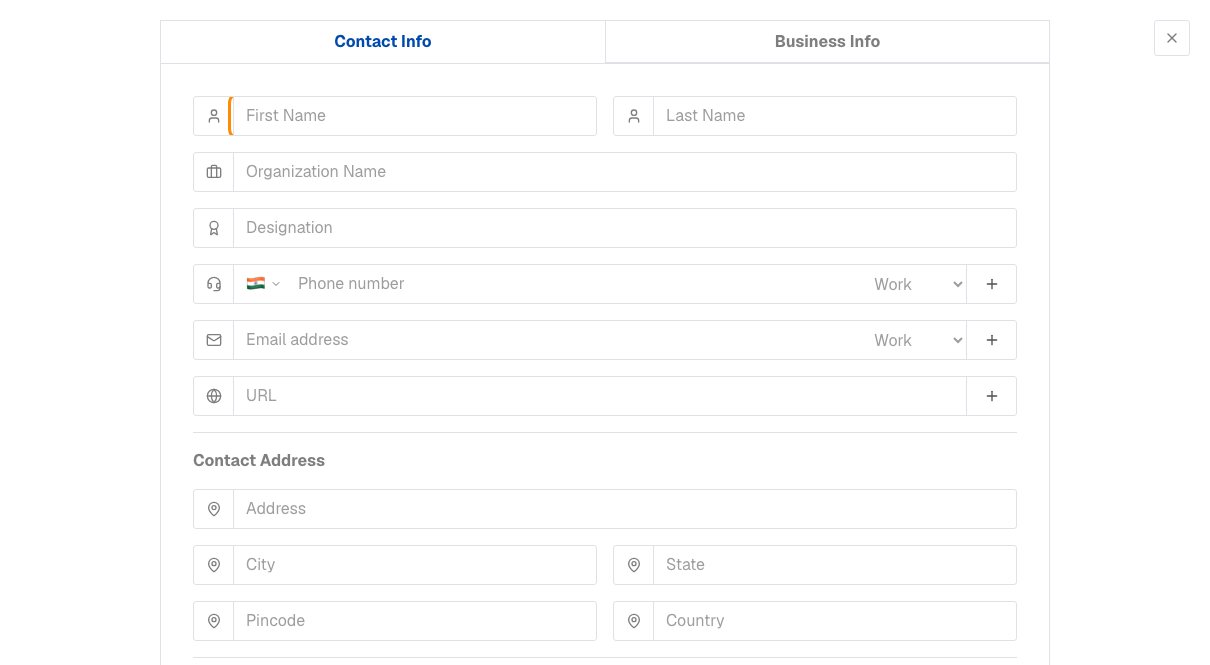
The Contact Info tab. Only First Name is required. - Add what you know: Last Name, Organization Name, Designation, a Phone number, an Email address, a URL. Use the small + to add a second phone number or email, and pick a type (Work, Home, Mobile and so on) for each.
- Add an address under Contact Address if you have one.
- Choose Tags, Source and Status. Source says where the person came from. A new contact starts as Fresh Lead unless you pick another status. If a value you need is not in a list, add it from the dropdown.
- Write anything worth remembering in Background.
- Choose Submit.
If the person works for a company, open the Business Info tab to add the company's phone, email, website, address and description. Companies with the same name are reused, so ten people at one company share one record.
Give them a next step
You land on the new contact. The What's Next? box is ready:
- Type what happens next, such as "Call about the quote".
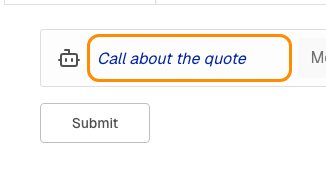
The What's Next? box on a new contact. - Choose who does it (it starts as you) and when (it starts as now).
- Choose Submit.
Now this lead has a task, and it appears in your Tasks list on that day. See your daily task list.
If it does not work
- "A contact with this phone number already exists." Phone numbers must be unique in your business. Search for that number and open the existing contact instead.
- "Another contact already has this email." Your business is set to warn or block on a repeated email. If it only warns, save again to keep both.
- "Your plan allows N contacts, and all are in use." Your plan's contact limit is reached. Nothing you have is affected; ask us to raise it.
- "Add an organization name to save Business Info." You filled in the Business Info tab without a company name. Add the name there, or clear the tab.
What to do next
Was this helpful?
Still stuck?
Ask us and tell us what you were trying to do. We will see the page you came from.
Ask us in EnableLeadsLast updated 2 November 2026